Introduction#
So about two months back, I moved to another city for work. My home PC — a fairly bulky Fedora machine that I’ve been calling titan — wasn’t something I was going to drag along in a bag. I left it behind at my hometown, plugged in and running on my home network. Before I left, I already had Tailscale configured on it, so at least I knew I could poke at it remotely if I needed to.
Fast forward to recently. I’ve been wanting to run LLMs locally without burning through money on cloud GPU services. Downloading llama3.1 and pointing Ollama at it on titan made sense — that machine has decent specs for it. But there’s a small catch. I’m not sitting in front of titan. I’m in another city with just my Ubuntu laptop.
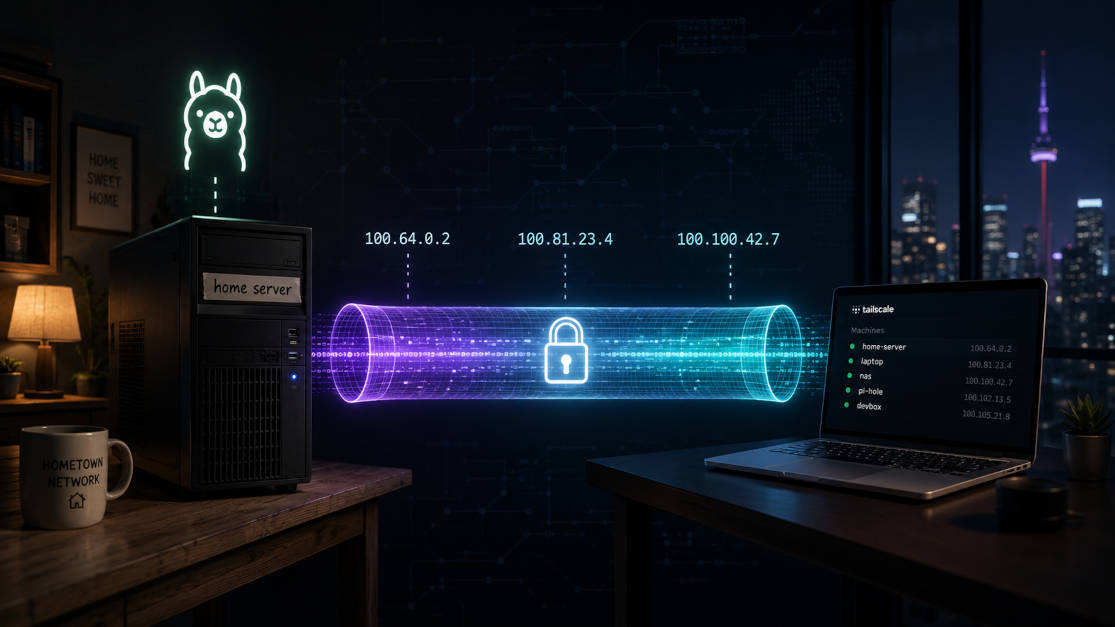
So how do you talk to Ollama on a machine that’s physically in another place? Tailscale. It builds a private, encrypted tunnel between your machines. No port forwarding. No opening firewall ports to the public internet. No messing with your router. It just works, and I already had it set up.
This post is essentially me documenting what I did. If your situation is similar — a beefy home machine and a lighter laptop elsewhere — this might work for you too.
What you need before starting#
I’ll be honest, this won’t be a from-scratch tutorial. You’ll need a few things already in place:
- Tailscale installed and running on both machines — the home PC and whatever you’re using remotely
- Both machines on the same tailnet — meaning same Tailscale account, so they can see each other
- Ollama already installed on the home machine — with at least one model pulled. I’m using
llama3.1
If you haven’t set up Tailscale yet, I wrote about it in my homelab post. Start there.
Step 1: Get your PC’s Tailscale IP#
First thing is to find out what IP Tailscale assigned to your home machine. On the Fedora machine, run:
| |
You’ll get back something in the 100.x.x.x range. That’s your VPN IP and it doesn’t change even if your home network IP does. Write it down somewhere — you’ll need it in every step after this.
Step 2: Tell Ollama to listen on the Tailscale IP#
Here’s something I didn’t know at first: by default, Ollama only listens on 127.0.0.1:11434. That means it only takes connections from localhost. Makes sense as a default, but not useful for our case.
We need to tell Ollama to also listen on the Tailscale IP. Since Ollama runs as a systemd service on Fedora, we’re going to use systemctl edit to drop in an override:
| |
This opens an editor (probably nano or whatever your default is). Add these lines:
| |
Swap 100.x.x.x for the actual IP you found in Step 1.
After saving, reload the daemon and restart Ollama:
| |
Now let’s confirm it actually worked:
| |
If you see output with your Tailscale IP on port 11434, you’re good. If it’s still showing 127.0.0.1, something didn’t take — double check the override file.
Step 3: Poke a hole in the firewall (just for Tailscale)#
Fedora uses firewalld by default, not ufw like Ubuntu. I keep forgetting this every time I switch machines, so if you’re also coming from Ubuntu, heads up.
We need to allow port 11434, but specifically only on the Tailscale interface. No point exposing this to the rest of the internet.
| |
What this does is put the Tailscale interface in the trusted zone and allow port 11434 on it. Your port never shows up on your regular network interface — only reachable over the Tailscale tunnel. I like this approach because it’s quite surgical. You’re not blowing open a port for everyone, just for the VPN.
Step 4: Connect from the other machine#
Now on your laptop — in my case my Ubuntu machine sitting in another city — set the OLLAMA_HOST environment variable:
| |
Again, replace with your actual IP. Now try listing the models:
| |
If that returns something, the connection is working. If it hangs or times out, go back and check the firewall step. In my case the first time I ran this, it just hung — I’d forgotten to reload firewalld.
You can also run a model directly:
| |
And if you want a quick sanity check without opening a full REPL, curl works:
| |
You should get back a JSON blob listing your models. If that works, everything is wired up correctly.
Step 5: Using the Python client#
Now that Ollama is accessible over the network, you can also talk to it programmatically. I wanted to hook it into some scripts I was working on, so I tried the Python client:
| |
Swap out the IP and you’re talking to the model on your home machine from wherever you are. No API keys, no usage limits, no paying per token. I found this really useful for automating some repetitive tasks without touching any cloud services.
The Python ollama library is quite minimal so it’s easy to build on top of. You can also use the raw HTTP API if you prefer — it’s the same endpoint curl was hitting above.
A few things I ran into#
While this mostly worked, a couple of things caught me off guard:
- The
OLLAMA_HOSTenv variable needs to be set in every shell session, or you add it to your.bashrc/.zshrc. Easy to forget this when you open a new terminal and suddenly Ollama isn’t connecting. - If your home machine reboots, the Tailscale IP stays the same, which is nice. But the
systemctl editoverride should survive reboots too since it’s persisted. I had this working even after a power cut. - Large models are slow to respond over a VPN tunnel depending on your internet speeds at home.
llama3.1at 8B parameters is manageable. Bigger ones might test your patience. I haven’t tried anything larger than that over this setup yet.
Conclusion#
That’s pretty much it. You’ve got your home machine running Ollama, listening on its Tailscale IP, with a firewall that only lets through traffic from the VPN. And from wherever you are, as long as Tailscale is connected, you can reach it.
What I like about this setup is that there’s nothing exotic going on. Tailscale handles the hard parts — the key exchange, encryption, NAT traversal — and we’re just telling Ollama where to listen. If Tailscale can already reach your machine, adding Ollama access on top of that is only a few commands.
If you want to understand why this works the way it does — what Ollama actually is, why it has an HTTP API in the first place, and why that API has no authentication to speak of — I’ve since written a series on exactly that: Understanding Your First Local AI Stack. Part 3 in particular covers the API contract and the network exposure question that this post solves with Tailscale.
If you have something similar running or tried a different approach, I’d be curious to hear about it in the comments. And if you want to see more of this kind of homelab stuff, you can subscribe to my YouTube channel — I’ll probably make a video on this at some point too.